How to Assign Bibs
By Stephanie Hidalgo
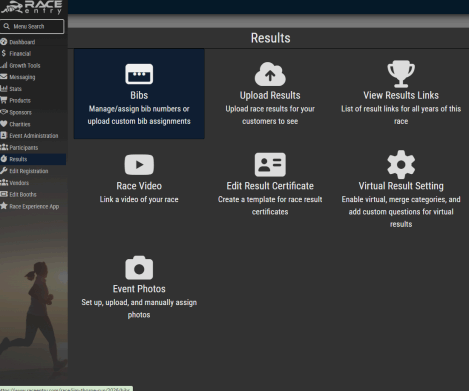
Race Entry provides two primary methods for assigning bib numbers to participants: automatic system assignment and manual upload. Both options are managed from the Bibs section under Results in the event dashboard.
Accessing Bib Assignment
- Log in to the Race Entry dashboard for the event.
- In the left navigation menu, select Results.
- From the Results menu, select Bibs.
Bib Assignment Options
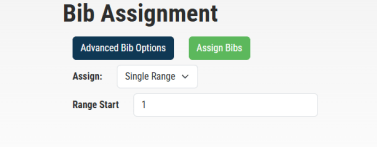
On the Bib Assignment page, use the Assign dropdown to choose how bibs are distributed. Two options are available: Single Range and By Category.
Option 1: Single Range
Assigns bib numbers sequentially to all registered participants across the entire event, regardless of category. Use this when bib numbers do not need to be segmented by race type.
Steps:
- Select Single Range from the Assign dropdown.
- Enter a Range Start number (e.g., 1).
- Click Assign Bibs. The system assigns numbers sequentially starting at the specified number.
Option 2: By Category
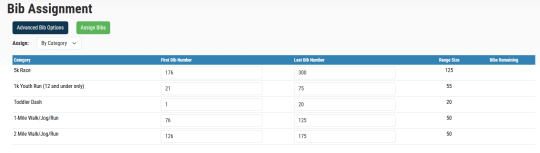
Assigns separate bib number ranges to each race category. Use this when different events or distances need distinct bib ranges (e.g., 5K bibs starting at 1, Youth Run bibs starting at 500).
Steps:
- Select By Category from the Assign dropdown. A table listing each category will appear.
- For each category, enter a First Bib Number and a Last Bib Number. The system calculates the Range Size and displays Bibs Remaining as registrations fill in.
- Ensure ranges do not overlap between categories.
- Click Assign Bibs when all ranges are set.
Advanced Bib Options
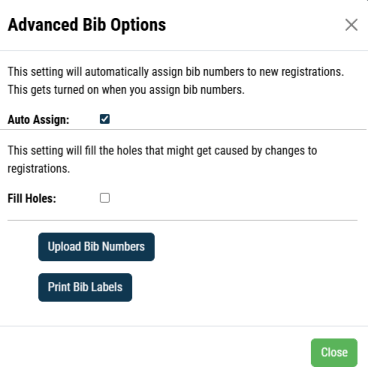
Click Advanced Bib Options to access the following settings:
- Auto Assign: When enabled, the system automatically assigns a bib number to each new registration after the initial assignment has been run. This is turned on when you first assign bibs and can be toggled off if manual control is preferred.
- Fill Holes: When enabled, the system fills any gaps in bib number sequences caused by registration changes (cancellations, transfers, etc.).
Uploading Custom Bib Assignments
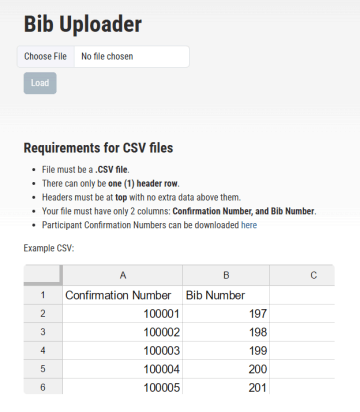
If bibs have been assigned manually (e.g., seeded athletes, wave assignments), use the Upload Bib Numbers option within Advanced Bib Options to import a CSV file.
CSV File Requirements:
- File must be a .CSV file.
- One (1) header row only, placed at the top with no extra data above it.
- Two columns required: Confirmation Number and Bib Number.
- Participant Confirmation Numbers can be downloaded from the Participants section of the dashboard.
Printing Bib Labels
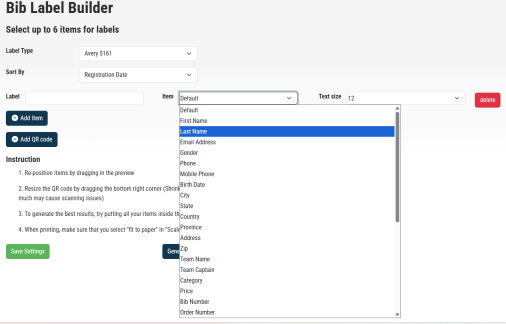
The Print Bib Labels option (also within Advanced Bib Options) opens the Bib Label Builder, which generates QR-code labels that can be paired with physical bibs at check-in.
How it works:
Labels are fully customizable — you can include up to 6 items per label pulled directly from registration data. Available fields include participant name, category, bib number, shirt size, city, team name, order number, and more. A QR code can also be added to each label.
When a QR code is included on the label:
- Labels are affixed to physical bibs before the event.
- At check-in, staff scan the participant’s registration QR code and the bib QR code label. 3. The system links the bib number to that participant’s registration.
Bib Label Builder Settings:
- Label Type: Select from available Avery label formats (e.g., Avery 5161).
- Sort By: Choose how labels are ordered (e.g., Registration Date).
- Add Item / Add QR Code: Add up to 6 items to the label layout. Position items by dragging within the preview. Keep all items inside the red bounding box.
- Printing Tip: When printing, select "Fit to paper" under Scale settings.
Note: Bib label scanning requires additional prep time. Evaluate whether this workflow is appropriate for the event size and staffing available at check-in.